

Where a Rule sits: the intake gate inside a workflow that's assigned to a product
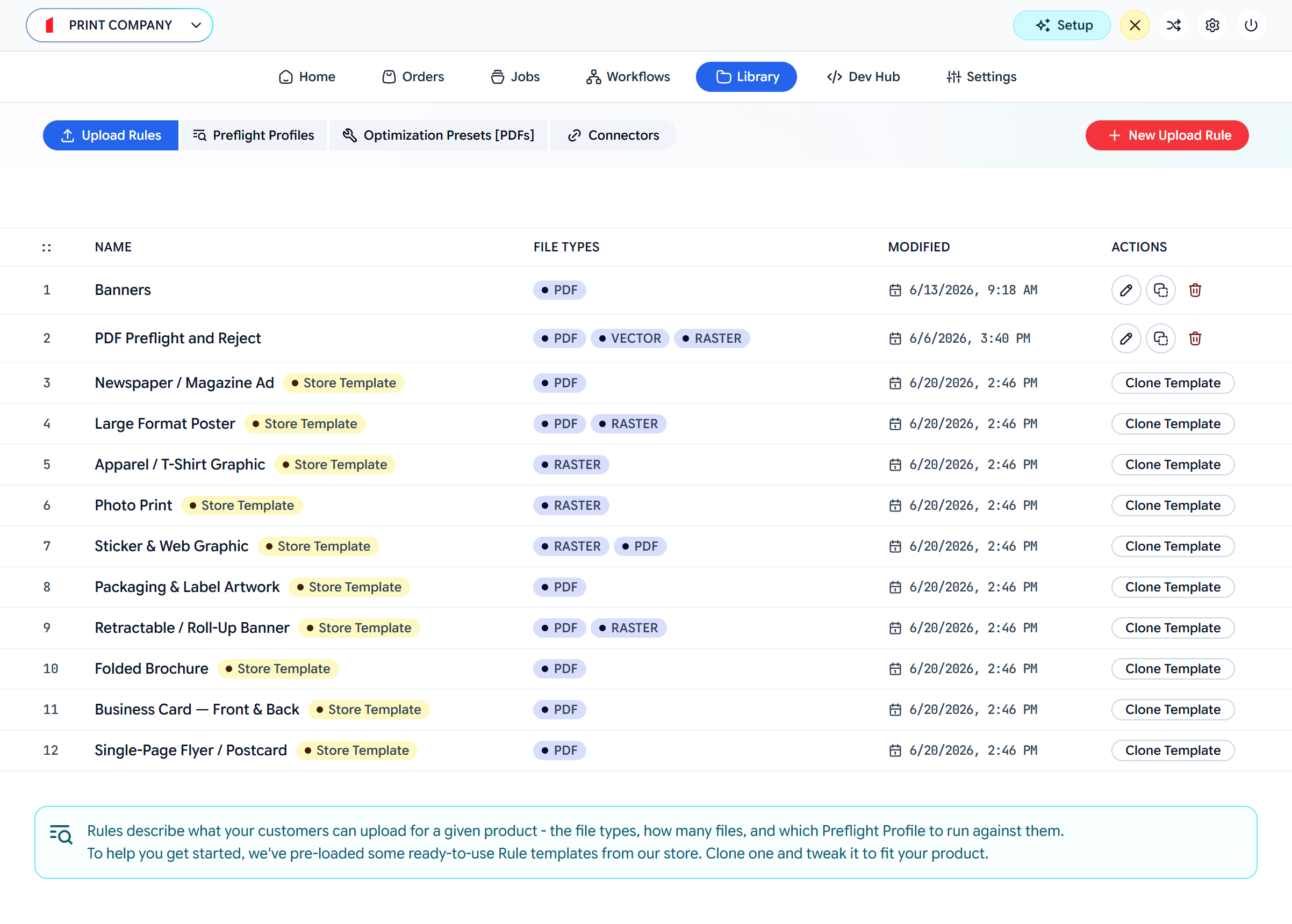
Library → Upload Rules
Create one
1
Open the Library
Go to Library → Upload Rules. Clone a template that’s close to your product, or click New Upload Rule.
2
Name it and add instructions
Give the rule a clear title. The optional upload instructions are shown to customers in the upload area.
3
Set cardinality
Choose how many files the customer must provide (below).
4
Accept file types
Add each file type you accept, with an optional max size and an optional check (below).
5
Save
Click Save. The rule can now be assigned to a Workflow.
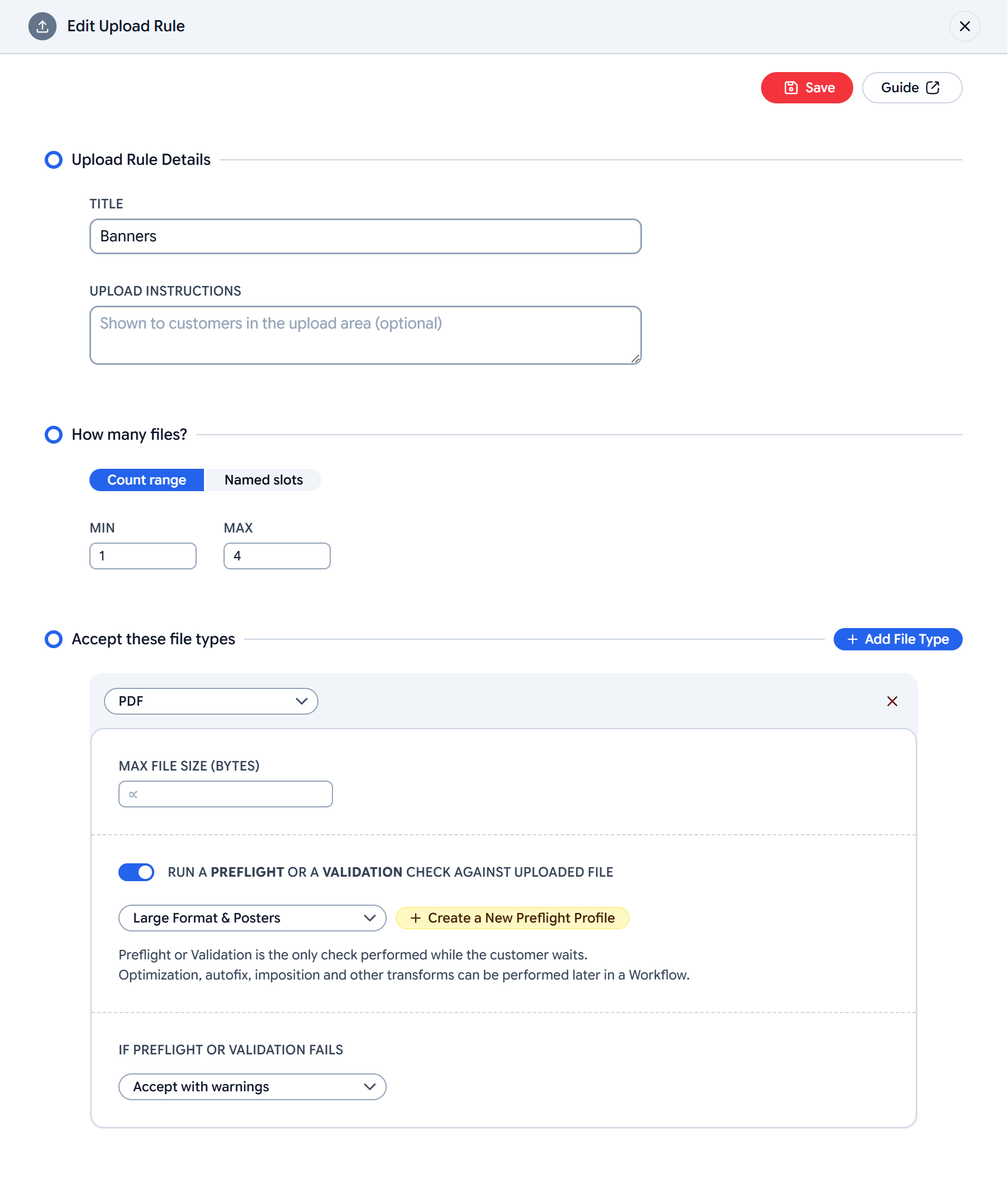
Edit Upload Rule — cardinality and accepted file types
Cardinality: how many files
Cardinality is how many files the rule requires and allows. Two modes:Count range
A MIN and MAX — for example 1–1 for a single artwork, or 1–4 to allow up to four. The customer must provide at least MIN before the job can proceed.
Named slots
A defined role per file — for example Front and Back for a double-sided card. Each slot is its own labelled drop target.
Accepted file types
Click Add File Type for each type you accept (PDF, PNG, JPG…), and optionally set a max file size. For each type you can decide whether — and how — to check the file.Preflight or validation
Toggle Run a preflight or a validation check against uploaded file, then pick what runs. This is the only check performed while the customer waits, so it stays fast; heavier transforms happen later in the Workflow.Preflight against a Profile
Choose a Preflight Profile — a PDF type lists PDF profiles, a raster type lists Raster profiles. The file is checked against that profile’s checks.
Validation against a standard
Choose a conformance standard instead — PDF/A (1a–4f) or PDF/UA (accessibility). The file is validated for conformance rather than checked against your custom profile.
Preflight and validation are mutually exclusive per file type — you pick one. Only PDF and raster types can be checked; other types (vector, office) are converted to PDF at intake and processed downstream.TODO(filecheck): list the exact vector and office formats accepted for auto-conversion at intake.
If the check fails
Set the onFail policy per file type:
This policy is what Filecheck collapses into the
canProceed flag your store reads. See Jobs.
Two layers decide the outcome. Each check inside a Preflight Profile has its own action (Reject / Warn / Auto-fix / Off), and the Rule adds this overall onFail policy on top. When they disagree — for example a check set to Reject under a Rule set to Accept with warnings — the resolved outcome is:TODO(filecheck): document which layer wins when a check action and the Rule’s onFail policy disagree.
Next: add this Rule to a Workflow
Assign the rule at a workflow’s intake stage and define the processing that follows.