

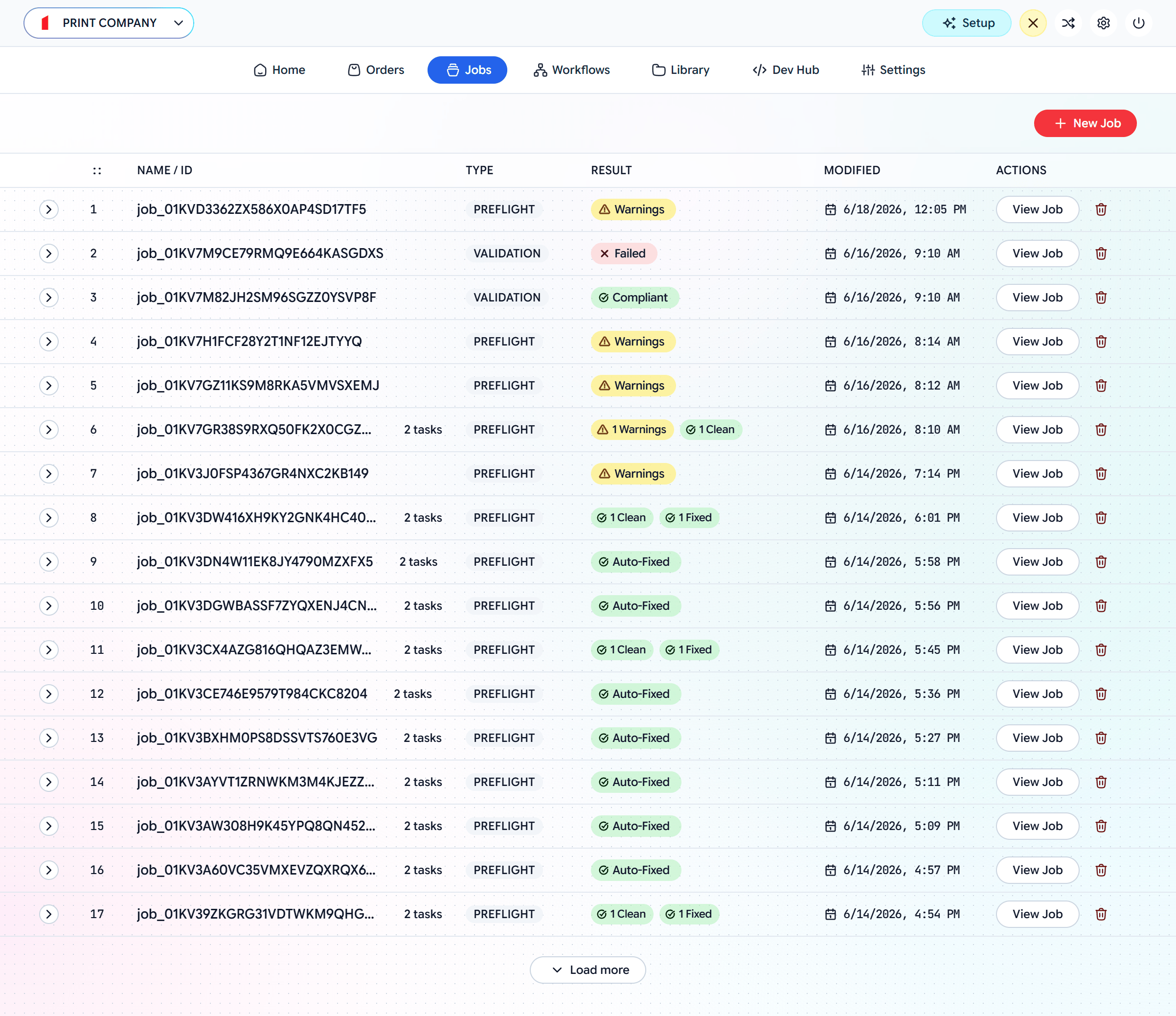
Jobs — every run, with its type and result
Reading a job
Each row shows the job’s type, a result, and a View Job action with the output and report. Results read at a glance:Getting the output
Once a job has run, the fixed or optimized files are available in two places:Your store dashboard
The validated job is attached to the order in your store’s admin — WooCommerce, OpenCart, PrestaShop, or Shopify. Open the order to download the print-ready files.
The Filecheck dashboard
Go to admin.filecheck.io/jobs (the Jobs tab), open any job, and download its output directly.
Integrating with your own backend instead of a plugin? Fetch the result server-side with your secret key — see Verify jobs.
Run a one-off job
You don’t need a full workflow to check or transform a single file. Click New Job on the Jobs screen to run something immediately and get the result back: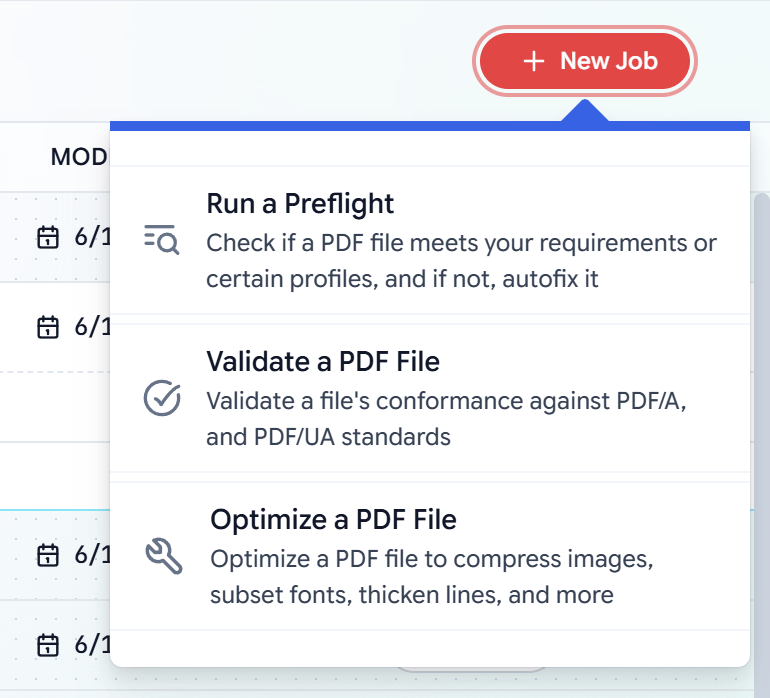
New Job — run a quick preflight, validation, or optimization
Run a Preflight
Check a PDF against your requirements or a chosen profile — and autofix it if it falls short.
Validate a PDF File
Check a file’s conformance to PDF/A or PDF/UA standards.
Optimize a PDF File
Apply an Optimization Preset — compress images, subset fonts, thicken lines, and more.