

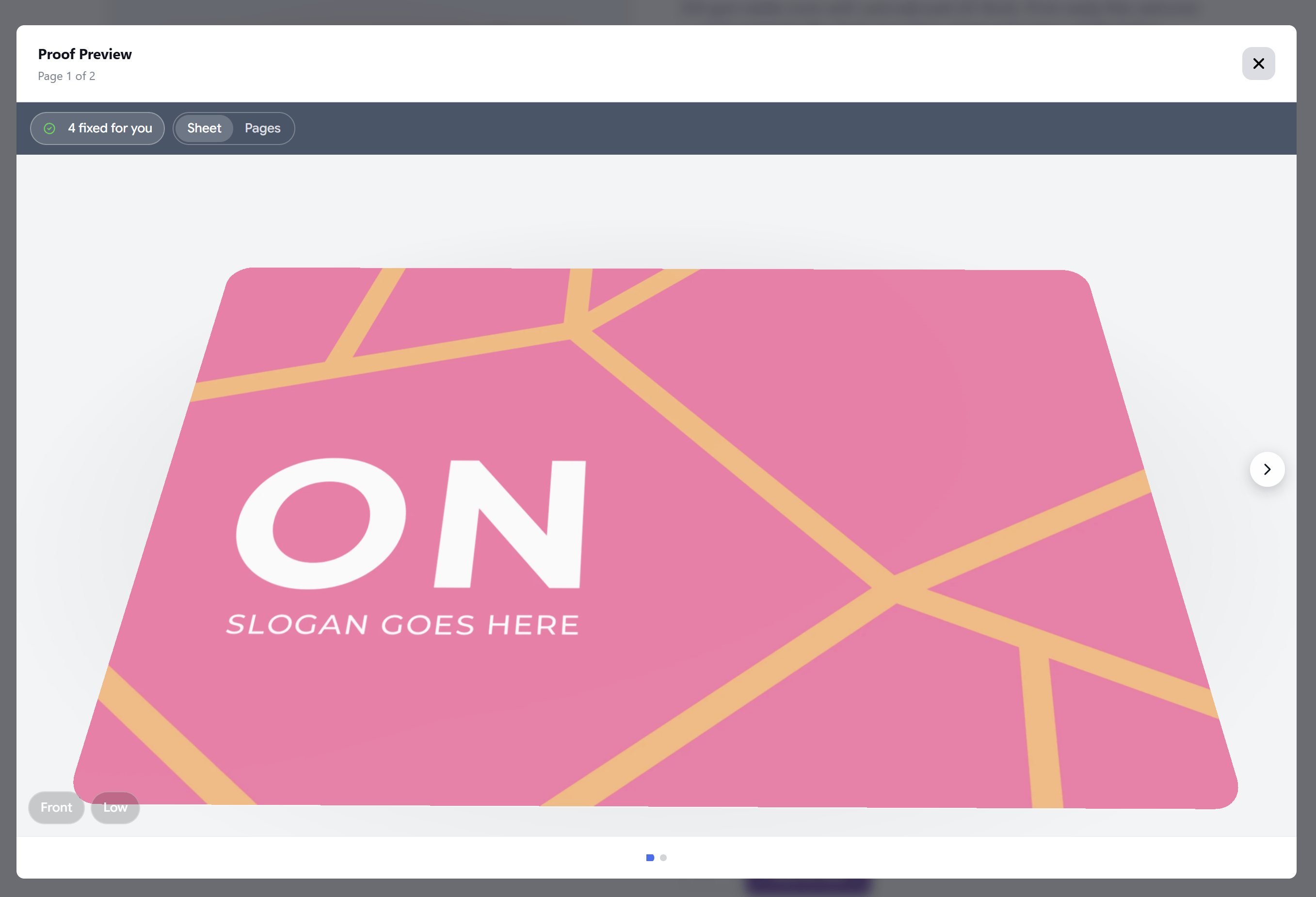
A business card proof in the customer's proof popup
Four kinds of product
3D product
Mugs, bottles, apparel, flags. Upload your own model (GLB or OBJ) and mark which parts take the print.
Folded leaflet
Half fold, tri-fold, Z-fold, gate fold, or your own panel widths. No model needed.
Booklet
Page-turning booklets, catalogues and calendars, bound on the left, right or top edge.
Flat sheet
Flyers, postcards and business cards, front and back, with optional rounded corners.
What the customer sees
- The proof opens on the product. The customer can drag to turn it and jump between the camera views you saved.
- A leaflet can be turned over and opened, a sheet turned over, and a booklet’s pages turned.
- A switch next to the product (3D, Folded, Booklet or Sheet) and Pages shows the flat proof pages instead.
- The issues summary stays one tap away, as in every proof.
- Approving works exactly as it does for flat proofs.
How the artwork lands on the product
Each kind reads the pages of the customer’s file in a fixed order:
A scene can also supply some sides itself, such as a coloured back on a single-sided business card or a printed back cover on a booklet. The customer’s pages then fill the other sides in order: with a supplied back, a business card shows page 1 on the front.
Products made from several files
When an Upload Rule asks for several files, for example one file for the front and one for the back, the proof puts them together in the order of the rule’s upload slots. The first slot’s pages come first. A business card with a Front slot and a Back slot shows the first file on the front and the second on the back. Opening the proof from any file opens the whole product, starting at that file’s page.Size
Folded leaflets, booklets and flat sheets take their size from the customer’s artwork, so one scene fits every size you sell. The size set in the scene is only for the preview, unless you turn on This product only comes in this size. A 3D product always uses the print-area sizes set in the scene.Good to know
A proof keeps its scene
A proof keeps its scene
A proof uses the scene as it was when the proof was made. Editing a scene changes the proofs for new uploads, not the ones already made. To see an edit on an existing file, upload it again.
Flat pages as a fallback
Flat pages as a fallback
If a device can’t show 3D, or the product can’t load, the proof shows the flat pages instead. The customer can still review and approve.
Product pages stay fast
Product pages stay fast
The 3D viewer only loads when a proof opens, so it adds nothing to your product page until then.
Show the proof in the product gallery
With 3D Proof in Product Gallery turned on in Settings → Element, the product’s own photo gallery shows the customer’s design on the product as soon as every uploaded file has its proof. The photos come back if a file is removed or replaced. Approval still happens in the proof popup.
Settings → Element
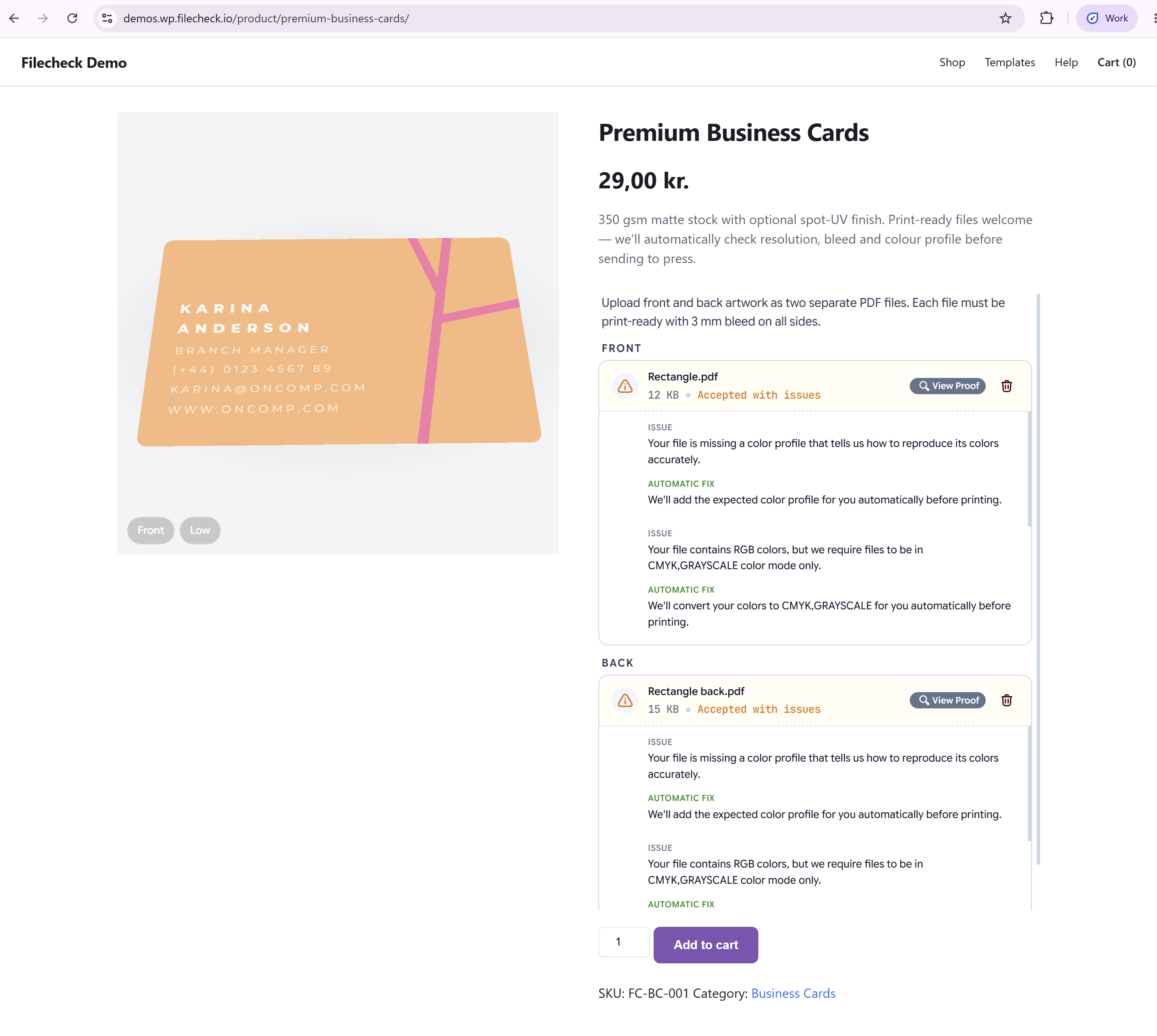
The proof in place of the product photos on a WooCommerce store
- Shopify: Dawn and other Online Store 2.0 themes, and classic themes
- WooCommerce
- PrestaShop 1.7 and 8 (Classic theme)
- OpenCart 3 and 4
- Magento 2 (Luma)
.product-gallery.
The gallery proof works with the official store plugins and with
Filecheck.mount. The workflow needs a 3D Scene on its Soft-proofing step.Next steps
Create a 3D Scene
Build the product in the Scene Studio.
Build a Workflow
Choose the scene on the Soft-proofing step.